
Description
WP Extended Pro Plugin Features
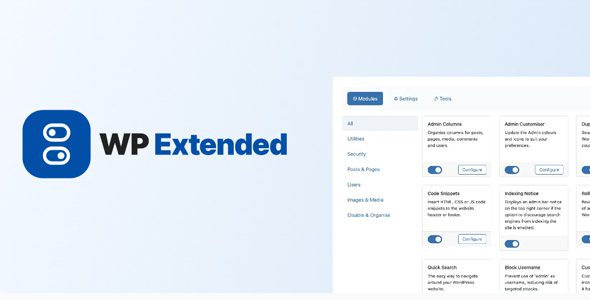
- Admin Columns
Organise columns for posts, pages, media, comments and users. - Admin Customiser
Update the Admin colours and icons to suit your preferences. - Quick Search
The easy way to navigate around your WordPress website. - Disk Usage Widget
Adds a widget to your WordPress dashboard display disk usage statistics. - Indexing Notice
An admin bar notice displaying an indexing status notice. - Duplicate Menu
Seamlessly clone your WordPress Menus in just a couple of clicks. - Code Snippets
Insert HTML, CSS or JS code snippets to the website header or footer. - Pixel Tag Manager
Easily manage the pixel tags for Google Analytics, Facebook and Pinterest. - Rollback Manager
Revert to previous versions of any theme or plugin from WordPress.org - SMTP Email
Reliably ensure the successful delivery of your emails with SMTP. - Hide Admin Notices
Hide unnecessary admin notices, allowing for a more focused and efficient admin experience. - Debug Mode
Enable Debug Mode to easily troubleshoot and resolve issues, providing detailed error logs and warnings for developers. - Limit Login Attempts
Prevent brute-force attacks by limiting the number of login attempts. - Block Usernames
Prevent use of certain usernames, reducing the risk of targeted attacks - Custom Login URL
Customize your login URL to increase security by making it harder for unauthorised access. - Hide WP version
Enhance security by hiding the WordPress version number from your site’s source view, thwarting targeted attacks. - Maintenance Mode
Switch your site to Maintenance Mode for updates or changes. - Disable XML-RPC
Increase security by disabling XML-RPC to prevent external applications from interfacing with your WordPress site, reducing vulnerability to attacks. - User Enumeration
Secures against hackers scanning for usernames, blocking user enumeration attempts. - User Last Login
Display the last login timestamps of users, monitoring user activity and managing user accounts effectively. - Disable Auto Updates
Gain full control over your site by manually managing updates, ensuring compatibility before applying new changes. - Clean Dashboard
Streamlines admin dashboard by hiding unwanted elements for a cleaner interface. - Disable Blog
Transform your site into a non-blogging platform by disabling blog-related features. - Disable Comments
Eliminate comment sections from your site, reducing spam and moderating efforts. - Hide Admin Bar
Keep the admin bar hidden for specific user roles or on specific pages. - Disable RSS Feeds
Ideal for websites that don’t require syndication or want to keep content exclusive to their platform. - Menu Editor
Customise your admin menus, including reordering, hiding, or renaming menu items. - Classic Editor
Switch back to the classic WordPress editor if preferred, offering a simpler content interface. - Gutenberg Widgets
Disable the Gutenberg widgets for those who prefer the classic WordPress interface.
How to Install WordPress Themes
- Begin by downloading the theme.zip file from the source onto your local computer.
- From your WordPress Administration area, head to Appearance > Themes and click Add New
- The Add New theme screen has a new option, Upload Theme
- The theme upload form is now open, click Choose File, select the theme zip file on your computer and click Install Now.
How to install WordPress Themes using FTP
- Launch Filezilla, enter your login details and click Quickconnect.
- The following window contains Remote Site and a root directory (the root directory is your site’s name). Select /rootdirectory/web/content/wp-content/themes.
- In the Local Site window, select the folder containing your saved theme, right click for more options and hit Upload.
- You’ve now successfully uploaded your theme to WordPress. To finalize, log in to your control panel, head to Appearance > Themes and hover your mouse over the new theme. Now click Activate.
- All that’s left is to check out your new theme and see how you like your new site design.
How to install WordPress Plugin Manually
- From your WordPress dashboard, choose Plugins > Add New.
- Click Choose File, locate the plugin .zip file, then click Install Now.
- After the installation is complete, click Activate Plugin.
To add a plugin to your WordPress website via FTP
- Download the desired plugin as a .zip file from either the WordPress directory or a third-party source.
- Extract (or unzip) the plugin file. The unzipped folder will appear with the same name as the .zip file.
- Next, you’ll need to connect to your WordPress website’s server with FTP. To do this, you can use an FTP client that connects to the host server to transfer files.
- Once you open the FTP client, connect to your website with a username and password. You might need to obtain these credentials from your hosting provider.
- In your WordPress file directory, open the wp-content folder, then open the plugins folder.
- Upload the unzipped plugin folder that you downloaded to the plugins folder.
- Return to your WordPress dashboard and select Plugins > Installed Plugins. Find your new plugin and click Activate.







Reviews
There are no reviews yet.