
Description
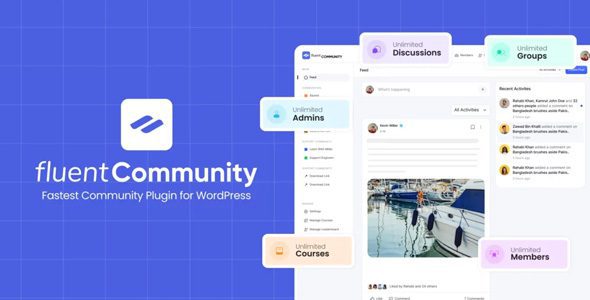
Fluent Community Pro Plugin WordPress Features
- Leaderboard
Showcase top contributors and inspire friendly competition with a dynamic leaderboard. - Mentions
Mention members with an auto-suggest box showing the name. - Hashtag
Allow users to create hashtags & use them to create trending activity. - Search
Let users search through every FluentCommunity component seamlessly. - Privacy
Set different levels of access; public, private, secret community. - Polls & Surveys
Gather valuable insights and feedback by creating engaging polls and surveys within your community. - Notification
Keep your members engaged with real-time notifications on important activities and updates. - Media Upload
Allow members to easily share any kind of images and videos directly within the community. - GIF
Enhance interactions with fun and expressive GIFs in posts, comments, and chats. - Branding
Customize your community’s look and feel to reflect your unique brand identity. - Custom Sidebar Link
Add custom links to the sidebar for access to important pages and resources in no time. - Welcome Message
Greet new members with personalized welcome messages to make them feel at home. - Role Manager
Easily assign and manage user roles with flexible permissions for a smooth community experience. - Media Storage
Choose where to store and serve your media files: Local File System, Amazon S3, or Cloudflare R2. - Bookmarks
Allow users to bookmark important content/post and return to it whenever needed. - Directory
Get a searchable community member/course directory for easy navigation and connection. - Custom Slug
Effortlessly personalize your community’s URL slugs for a cleaner and branded web presence. - Profile Dropdown Items
Customize profile drop-down menus with essential links and quick actions for easier navigation. - User Approval
Manage new member requests or content approvals, or block members to maintain quality and control.Email Digest
Send regular email digests summarizing recent notifications to keep members informed & connected. - All Activities
Easily filter community activities for quick access to relevant updates and interactions. - Dark/Light Mode
Offer members a choice between dark and light modes for a personalized browsing experience.
How to Install WordPress Themes
- Begin by downloading the theme.zip file from the source onto your local computer.
- From your WordPress Administration area, head to Appearance > Themes and click Add New
- The Add New theme screen has a new option, Upload Theme
- The theme upload form is now open, click Choose File, select the theme zip file on your computer and click Install Now.
How to install WordPress Themes using FTP
- Launch Filezilla, enter your login details and click Quickconnect.
- The following window contains Remote Site and a root directory (the root directory is your site’s name). Select /rootdirectory/web/content/wp-content/themes.
- In the Local Site window, select the folder containing your saved theme, right click for more options and hit Upload.
- You’ve now successfully uploaded your theme to WordPress. To finalize, log in to your control panel, head to Appearance > Themes and hover your mouse over the new theme. Now click Activate.
- All that’s left is to check out your new theme and see how you like your new site design.
How to install WordPress Plugin Manually
- From your WordPress dashboard, choose Plugins > Add New.
- Click Choose File, locate the plugin .zip file, then click Install Now.
- After the installation is complete, click Activate Plugin.
To add a plugin to your WordPress website via FTP
- Download the desired plugin as a .zip file from either the WordPress directory or a third-party source.
- Extract (or unzip) the plugin file. The unzipped folder will appear with the same name as the .zip file.
- Next, you’ll need to connect to your WordPress website’s server with FTP. To do this, you can use an FTP client that connects to the host server to transfer files.
- Once you open the FTP client, connect to your website with a username and password. You might need to obtain these credentials from your hosting provider.
- In your WordPress file directory, open the wp-content folder, then open the plugins folder.
- Upload the unzipped plugin folder that you downloaded to the plugins folder.
- Return to your WordPress dashboard and select Plugins > Installed Plugins. Find your new plugin and click Activate.






Reviews
There are no reviews yet.