
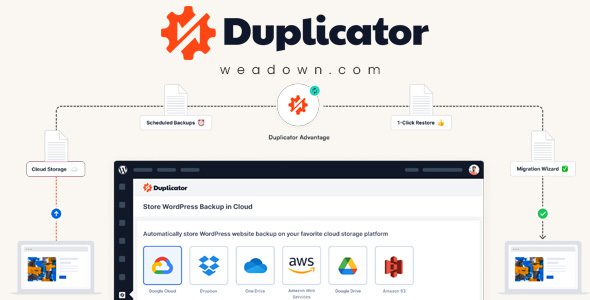
Description
Duplicator Pro Plugin WordPress Features
- Automatic Backup Schedule
With scheduled backups, you can ensure that your data is automatically saved and stored at regular intervals, without requiring manual intervention or oversight. - File & Database Table Filters
Selectively choose the files you want to preserve. Database-only, Media-only or Custom backups. - MultiSite Support
Backup a Single WordPress site, an entire Multisite Network or sub-site within WordPress Multisite. - Cloud Backup Storage
Back up to Dropbox, FTP, Google Drive, OneDrive, Amazon S3 or any S3 Compatible service for safe storage. - Large Site Support
Duplicator can backup the largest of WordPress websites with ease. - Recovery Points
Quick rollbacks provide protection against mistakes and bad updates, ensuring your website stays up-to-date and error-free. - Server-to-Server Imports
No need to download the package to your desktop machine first. Direct backup import form any URL. - Migration Wizard
Easily migrate any website with our simple and easy-to-use Migration Wizard. Migrate in just 2 steps! - Drag and Drop Import
Restore or Migrate simply by dragging the bundled site archive into the new site you wish to overwrite. - Amazon S3
Amazon S3 is an object storage service that offers industry-leading scalability, data availability, security, and performance. - Google Drive
Store, share, and collaborate on files and folders from your mobile device, tablet, or computer. - One Drive
Save your files to OneDrive and access them from any device, anywhere. Learn more - Dropbox
Back up files in the cloud, share photos and videos, and more. - Managed Hosting Support
Supports WordPress.com, WPEngine, GoDaddy Managed, Liquid Web Managed, and more. - Shared Database Support
Migrate to destinations where the database is shared with another WordPress site. - Email Alerts
Know immediately when Duplicator has issues with a backup, times out or needs some attention. - Backup Limits
Limit the number of stored backups to prevent filling up your local or cloud storage. - Developers Optimized
With Regenerate Salts, Custom Search & Replace cPanel Integration and Developer hooks you can ensure Duplicator can accommodate your backup needs. - Complete WordPress Backups
We have tons of helpful features that allow us to give you everything you need from a backup & migration plugin. - Automatic Backup Schedule
Ensure that important data is regularly and consistently backed up, allowing for quick and efficient recovery in case of data loss. - Cloud Backup Storage
Back up to Dropbox, FTP, Google Drive, OneDrive, Amazon S3 and more for safe storage. - 1-Click Restore
Recovery Points provide protection against mistakes and bad updates by letting you quickly rollback your system to a known, good state. - Secure Backup Encryption
Protect and secure the archive file with industry-standard AES-256 encryption. - WordPress Migration Wizard
Easily migrate any website with our simple and easy-to-use Migration Wizard. - Quick Website Transfer
Transfer your website in minutes instead of hours using manual migration methods. - Streamlined Installer
In just 2 steps have your new WordPress transferred and migrated. - Server to Server Import
Save time by importing from a server or cloud storage using URL. - Custom Search & Replace
Quickly find old URLs and replace them with our custom Search and Replace tools. - Multi-site Network Support
Duplicator Pro supports multisite network backup & migration. - Shared Database Support
Migrate to destinations where the database is shared with another WordPress site.
How to Install WordPress Themes
- Begin by downloading the theme.zip file from the source onto your local computer.
- From your WordPress Administration area, head to Appearance > Themes and click Add New
- The Add New theme screen has a new option, Upload Theme
- The theme upload form is now open, click Choose File, select the theme zip file on your computer and click Install Now.
How to install WordPress Themes using FTP
- Launch Filezilla, enter your login details and click Quickconnect.
- The following window contains Remote Site and a root directory (the root directory is your site’s name). Select /rootdirectory/web/content/wp-content/themes.
- In the Local Site window, select the folder containing your saved theme, right click for more options and hit Upload.
- You’ve now successfully uploaded your theme to WordPress. To finalize, log in to your control panel, head to Appearance > Themes and hover your mouse over the new theme. Now click Activate.
- All that’s left is to check out your new theme and see how you like your new site design.
How to install WordPress Plugin Manually
- From your WordPress dashboard, choose Plugins > Add New.
- Click Choose File, locate the plugin .zip file, then click Install Now.
- After the installation is complete, click Activate Plugin.
To add a plugin to your WordPress website via FTP
- Download the desired plugin as a .zip file from either the WordPress directory or a third-party source.
- Extract (or unzip) the plugin file. The unzipped folder will appear with the same name as the .zip file.
- Next, you’ll need to connect to your WordPress website’s server with FTP. To do this, you can use an FTP client that connects to the host server to transfer files.
- Once you open the FTP client, connect to your website with a username and password. You might need to obtain these credentials from your hosting provider.
- In your WordPress file directory, open the wp-content folder, then open the plugins folder.
- Upload the unzipped plugin folder that you downloaded to the plugins folder.
- Return to your WordPress dashboard and select Plugins > Installed Plugins. Find your new plugin and click Activate.

Reviews
There are no reviews yet.