
Description
The7 - the Most Customizable Theme on the Market
The7 is the most customizable WordPress, Elementor, and WooCommerce theme available on the market up to date. It gives you creative freedom that no other theme can match. No matter if you are a beginner or a pro, a website owner, a creative professional, or a digital agency - The7 offers tremendous power and unparalleled value to everyone.
The7 is designed to work in synergy with Elementor and WooCommerce. But it is so much more than the sum of the parts!
If you have ever tried to build a website header or customize a product page with vanilla Elementor, you know what pain it is. But not with The7. We have crafted a comprehensive set of tools to build unique headers, product lists, and individual pages - you can target literally any part of your website. And do so without writing a single line of code.
You will not find a theme, a plugin, or any other tool that can match the level of customization The7 offers.
The7 packs all the features you expect from a modern multipurpose theme and much more! Here are some of them:
#1 Selling Theme for Elementor on ThemeForest.net
The7 is the most popular theme for Elementor on ThemeForest. It is trusted by over 270,000 users. And this, in turn, means that The7 is very well tested, dependable, and offers features that other themes do not have.
Moreover, it is fully compatible with PRO Elements - Elementor Pro free alternative. So you can save some serious $$ on it!
Therefore The7 is the best choice if you are looking for an Elementor theme.
It is FAST!
Multipurpose WordPress themes are inherently slow. This makes sense, as the more features (often unused) you have, the slower your website becomes.
The7 features deep integration with the free Fast Velocity Fast Minify plugin. It optimizes the website’s HTML, CSS, and JS code page-by-page, which results in wickedly fast websites and excellent Google Page Speed ratings.
Pre-made Websites to Kick-Start Your Project
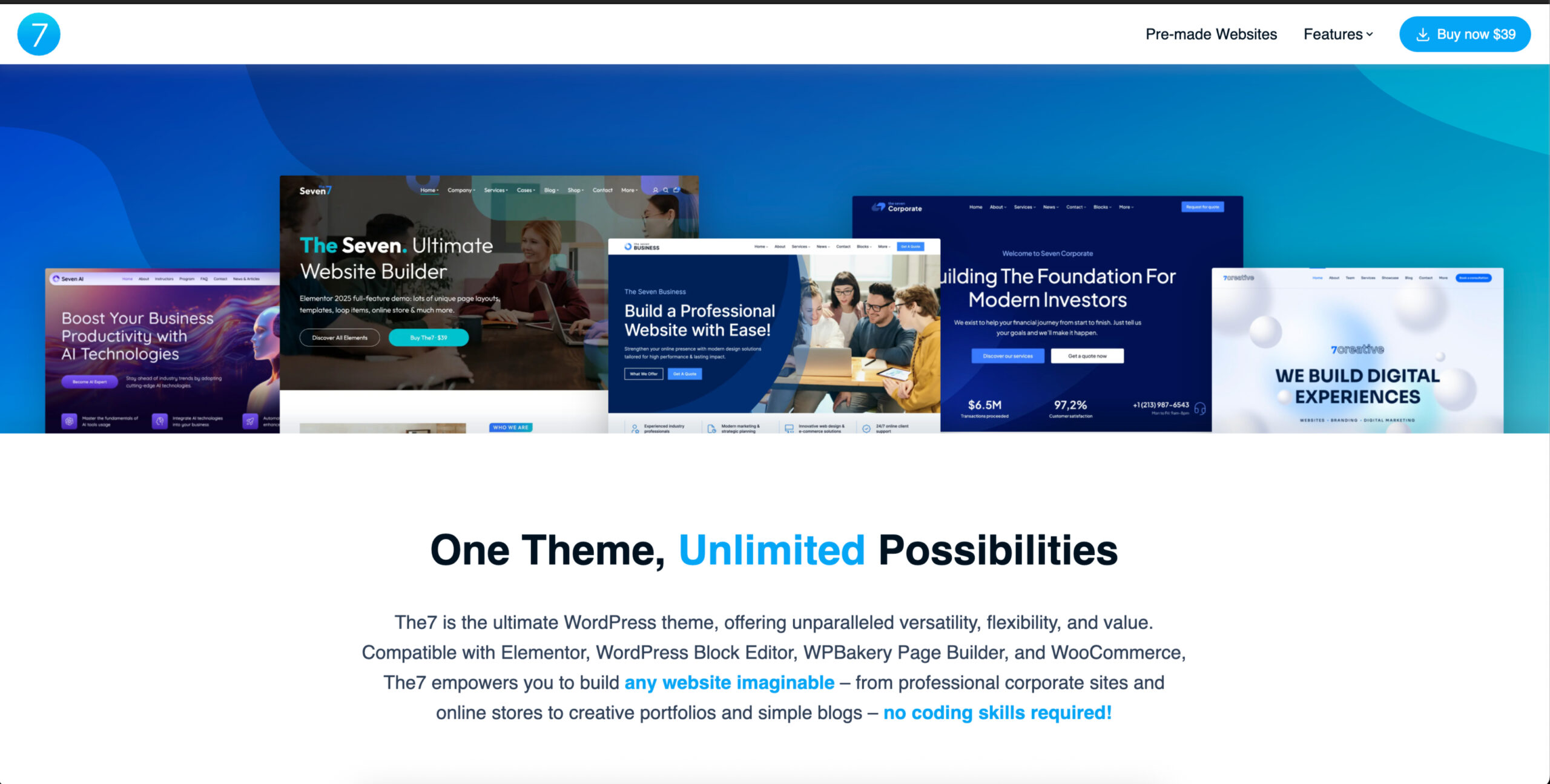
Pre-made Websites (or Demo Sites) not only showcase the theme features and capabilities but can also be used as a foundation for your website. You can mix and match them, install and uninstall, import individual pages, and fully customize them to your needs and likings. Check them out here.
Complete Site Builder
Elementor is a great page builder. However, it falls flat on its back when it comes to building a header or customizing a WooCommerce page.
We have extended the Elementor with new widgets and capabilities that let you build modern dynamic headers, interactive mega menus, hero sections, sliders, customize your WooCommerce and archive pages, and much more!
Comprehensive Design System and Theme Style
The Design System feature allows the quick change of the typography and colors across an entire website.
And advanced Theme Style editing lets you target the default styles of your website. E.g., general typography, headings, buttons, forms, etc.
In practice, this means that you can install a pre-made website and quickly customize it to fit your design needs, which is a further quality-of-life improvement not available when using vanilla Elementor.
Bespoke Widgets
We have altered many standard widgets and created a whole range of new ones (we call them “The7 Elements”) in order to enhance and extend the Elementor.
The7 Elements includes (but is not limited to): 26 general content widgets (full list and demo are available here), 24 WooCommerce widgets, and 22 Theme Builder widgets.
Simple Custom Post Type Builder
Like many other themes, The7 always came with built-in post types for a portfolio, team, clients, etc. But what if you need to alter an existing post type or make a duplicate?
In the new version, we’ve gone a bit further and created a very simple post type builder. Now you can edit existing or create your own post types and display them with our universal masonry, list, grid, and carousel widgets. What’s more, our post types are fully compatible with the Advanced Custom Fields (ACF) plugin. So the possibilities are truly limitless. And no coding is required!
Extended WooCommerce Integration
WooCommerce is the most popular e-commerce software on the planet. And The7 takes it to a whole new level. Your online shop no longer has to look like many others! You can create fully custom storefronts, product pages, product lists, shopping cart, checkout, and more! Again, this is not something available in other Elementor themes.
Oh, and have we mentioned the advanced product filters available only in The7?
WPBakery Page Builder and Ultimate Addons Are Not Forgotten
WPBakery Page Builder (formerly Visual Composer) was THE page builder for WordPress once. And Ultimate Addons was the ultimate extension for it. Times have changed, but WPB still has a strong following. And though we are focused mainly on Elementor nowadays, The7 remains the most popular choice for this page builder.
Free Updates and Support
Since its first release in 2013, we’ve constantly been updating The7 to ensure its compatibility with the newest WordPress, introducing new features, etc. These updates are free for all The7 buyers.
We also provide free customer support even when your support period on ThemeForest is expired. (Provided you are not abusing it.) No recurring membership or other hidden fees!
White Labeling Tool
The white labeling tool allows you to rename The7, change its thumbnail, theme info, etc. This feature is handy if you want to customize The7 with your own branding.
Multilingual and Translation Ready
The7 is 100% translation ready. In fact, it is already translated into 10+ languages. And if you want to build a multilingual website, the theme is fully compatible with the widely popular WPML plugin.
SEO-ready and Mobile Friendly
The theme is compatible with a wide range of search engine optimization plugins, including Yoast SEO. It is also certified by Google as mobile-friendly.
$174+ Worth of Premium Plugins Included
The following premium plugins come bundled with The7 for free: Slider Revolution, WPBakery Page Builder, Ultimate Addons for WPB, Convert Plus, and Go Pricing Tables.
Please note that you get these plugins and permission to use them on your The7-powered website, but you don’t receive dedicated licenses, demo content, etc. This is true for ALL themes on ThemeForest.
Discount Built Into the Price
We took our marketing budget and decided that instead of spending it on paid reviews and fake comments, we would pass it down to our customers as a discount. Therefore The7 is up to 44% cheaper than other top-selling themes on ThemeForest.
… and much, much more!
How to Install WordPress Themes
- Begin by downloading the theme.zip file from the source onto your local computer.
- From your WordPress Administration area, head to Appearance > Themes and click Add New
- The Add New theme screen has a new option, Upload Theme
- The theme upload form is now open, click Choose File, select the theme zip file on your computer and click Install Now.
How to install WordPress Themes using FTP
- Launch Filezilla, enter your login details and click Quickconnect.
- The following window contains Remote Site and a root directory (the root directory is your site’s name). Select /rootdirectory/web/content/wp-content/themes.
- In the Local Site window, select the folder containing your saved theme, right click for more options and hit Upload.
- You’ve now successfully uploaded your theme to WordPress. To finalize, log in to your control panel, head to Appearance > Themes and hover your mouse over the new theme. Now click Activate.
- All that’s left is to check out your new theme and see how you like your new site design.
How to install WordPress Plugin Manually
- From your WordPress dashboard, choose Plugins > Add New.
- Click Choose File, locate the plugin .zip file, then click Install Now.
- After the installation is complete, click Activate Plugin.
To add a plugin to your WordPress website via FTP
- Download the desired plugin as a .zip file from either the WordPress directory or a third-party source.
- Extract (or unzip) the plugin file. The unzipped folder will appear with the same name as the .zip file.
- Next, you’ll need to connect to your WordPress website’s server with FTP. To do this, you can use an FTP client that connects to the host server to transfer files.
- Once you open the FTP client, connect to your website with a username and password. You might need to obtain these credentials from your hosting provider.
- In your WordPress file directory, open the wp-content folder, then open the plugins folder.
- Upload the unzipped plugin folder that you downloaded to the plugins folder.
- Return to your WordPress dashboard and select Plugins > Installed Plugins. Find your new plugin and click Activate.

Reviews
There are no reviews yet.